About Services Tools Blog Contact us

Screenshot Interface Reading

Turns one screenshot into an outline of windows, panels, icons and text, and returns the centre of a named control so a later step knows where to click.

  • Document Understanding & OCR
  • Cross-sector
  • Tool
  • Productised
  • Local/private
  • 2026

The problem

Desktop jobs still depend on someone looking at the screen. The programme often gives no description of its buttons, icons and labels, so a script has to find them from the picture alone.

What it does

The tool finds boxes on the screen, from small controls up to whole windows. It labels each box and reads its text with the macOS built-in text reader, and a Gemma model can name icons it does not recognise. The result is saved as a structured outline and as cut-out pictures. A text search returns the position and centre point of the matching control. An optional check can confirm that a picture's label matches what Gemma sees.

Outcomes

  • A screen becomes an outline a script can step through.
  • A named button returns a click point even though the programme does not describe itself.
  • Cut-out pictures can be checked against what Gemma reads.
  • Empty items are dropped, so the outline stays usable.

Simplified mockup

Interactive preview with sample data. Nothing is sent to a server.

Screenshot Interface Reading

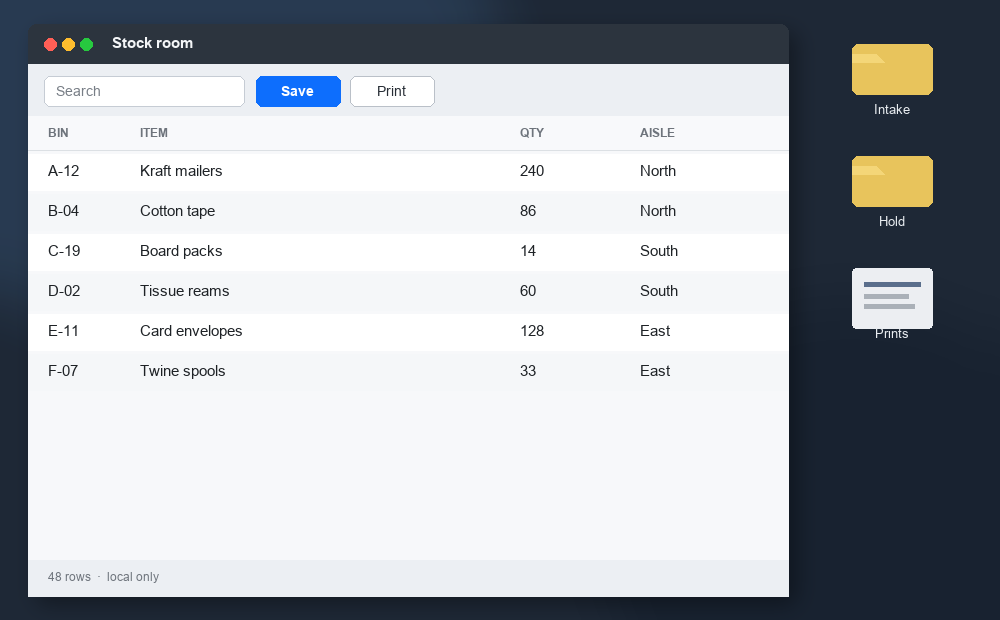
Dummy desktop with a stock room window, a toolbar and three icons
Read

No accessibility tree. Rectangles, then a label for each one.

Screenshot is loaded

Find a control

Same desktop, ready for a named control query
Query
Ask for Search, Save, Print, Intake, Hold or Prints

Crops and vision check

Search text field
Crop of the Search field
Detected
Text field
Read
Search
Model
agrees
Save button
Crop of the Save button
Detected
Button
Read
Save
Model
agrees
Print button
Crop of the Print button
Detected
Button
Read
Print
Model
agrees

How it works

  1. Capture a screenshot, or supply one as an image.
  2. Find boxes around icons and buttons, up to panels and windows.
  3. Label each box and read its text with the macOS text reader.
  4. Name unfamiliar icons from a saved list, or with Gemma.
  5. Save a structured outline and a folder of cut-out pictures.
  6. Search by text to get the position, centre point and closeness of match for a control.

Pipeline

flowchart LR
  A["Screenshot"] --> B["Detect rectangles"]
  B --> C["Classify nodes"]
  C --> D["Read text"]
  D --> E["XML tree"]
  D --> F["Crops"]
  E --> G["Named control query"]
  G --> H["Box and centre"]

Output