About Services Tools Blog Contact us

Phone Contact Cards

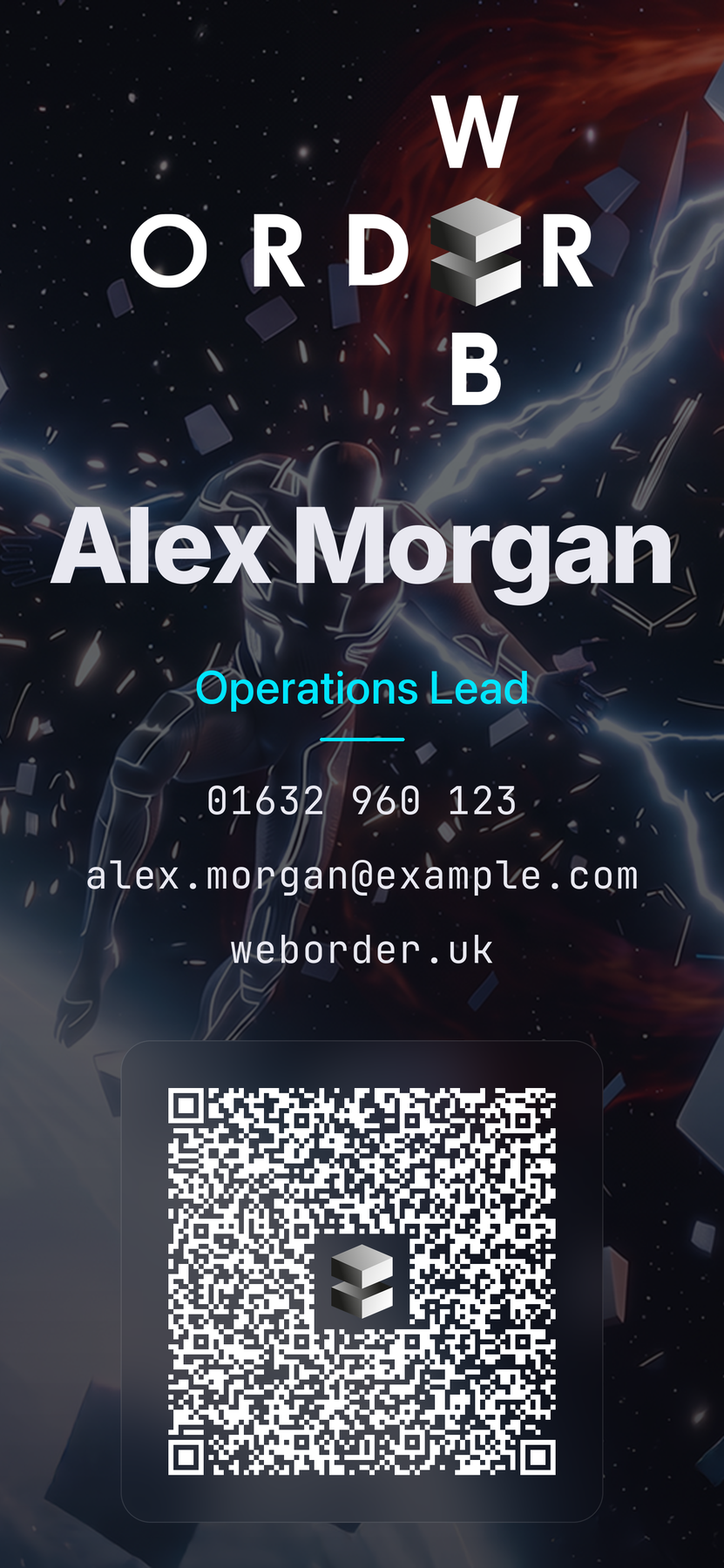
Makes a phone-screen business card with name, role and contact lines, plus a QR code that a phone camera can use to save the contact. Each image is scanned again before it is handed over.

  • Brand Assets & QR
  • Professional services
  • Tool
  • Productised
  • Local/private
  • 2026

The problem

A paper card is out of date the moment a number changes. Anyone who photographs it still has to type the details in.

What it does

You give it a name, role, phone, email and web address. It draws a full-screen card in the company colours and turns the contact details into a QR code with room for the logo in the centre. It then reads the code back from the finished image and compares it with the details that went in.

Outcomes

  • The card fills a phone screen and stays sharp.
  • Scanning the code offers to save the contact.
  • A faulty code is caught by scanning the image and not by eye.

Simplified mockup

Interactive preview with sample data. Nothing is sent to a server.

Phone vCard card

Contact

Sample contact. The colour chooses which checked render is shown.

Render
  1. Build vCard
  2. Encode QR
  3. Render card
  4. Verify QR
Ready to render

Team cards

Alex Morgan Cyan
Alex Morgan cyan phone card

Operations Lead

01632 960 123

QR verified
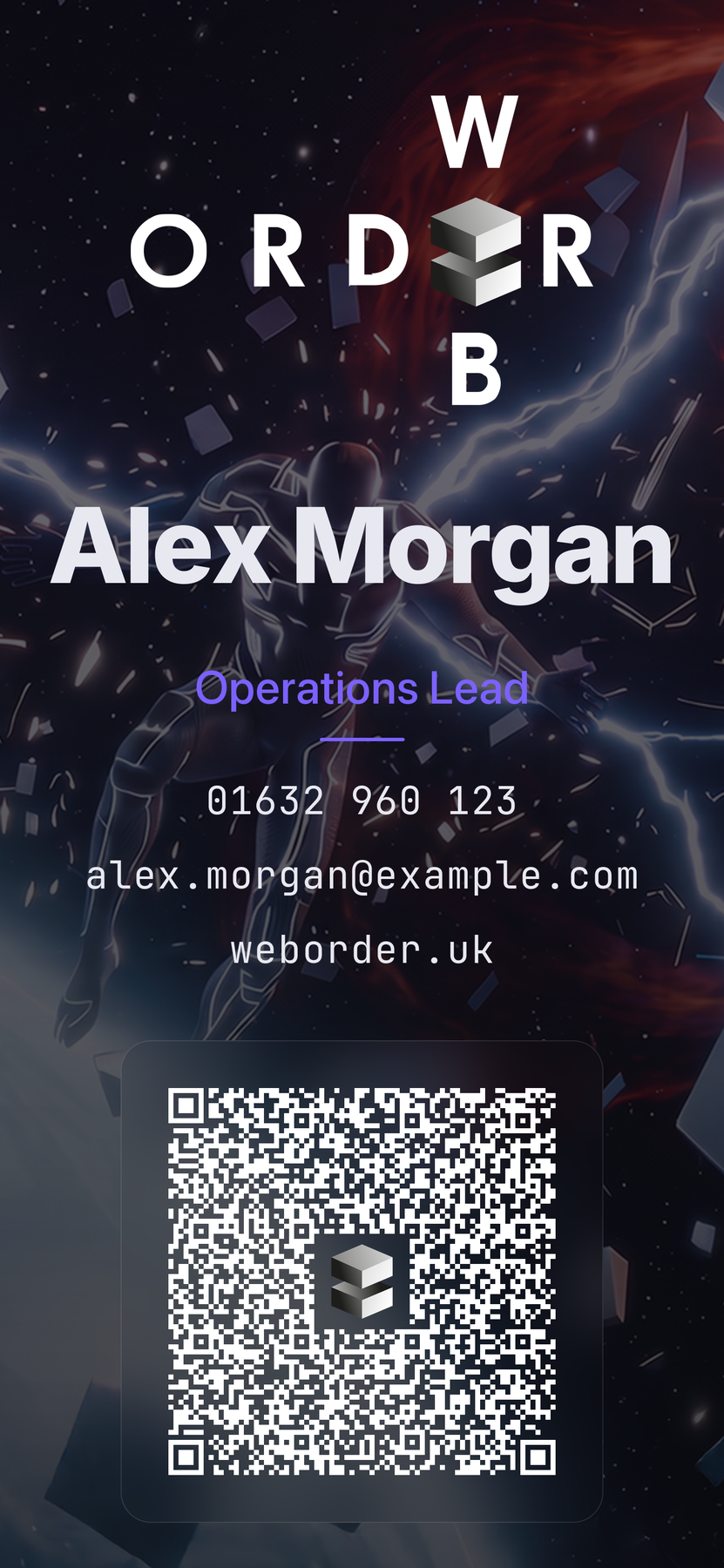
Alex Morgan Violet
Alex Morgan violet phone card

Operations Lead

01632 960 123

QR verified
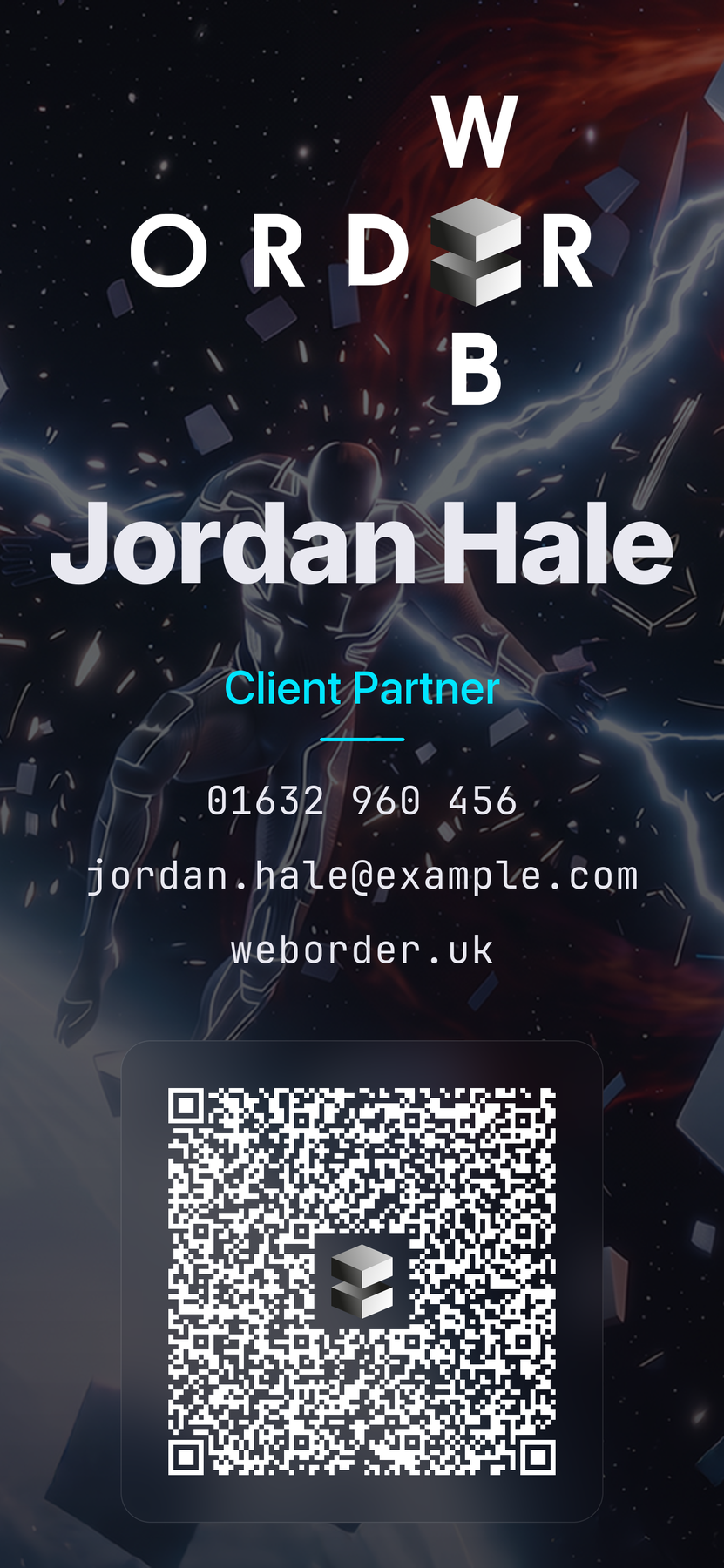
Jordan Hale Cyan
Jordan Hale cyan phone card

Client Partner

01632 960 456

QR verified

How it works

  1. Pack the name, role, phone, email and web address into a standard contact-card format.
  2. Turn that into a QR code that still scans if slightly damaged, with a clear centre left for the cube logo.
  3. Draw the card at phone resolution with background photograph, brand glow, wordmark, headline, role and contact lines.
  4. Read the image back on the Mac and compare what it finds with the contact details that went in.

Pipeline

flowchart LR
  Details[Contact details] --> VCard[Build vCard]
  VCard --> QR[Encode QR]
  QR --> PNG[Render card]
  PNG --> Check[Verify QR]
  Check --> Out[Checked PNG]

Output